Lororo
 Lororo Academy
You sort out your money with ChatGPT and keep the course in Lororo Academy. Every few days you copy a prompt, wait for the JSON, copy it back and paste it into Academy. It works, but every new module means the same five steps.
A ChatGPT plugin for learning removes those steps. You connect Lororo Academy to ChatGPT once, in about two minutes. After that you write "write the next module of my finance course", and ChatGPT puts the lessons into Academy itself.
What changes when ChatGPT is connected
Without the connection, ChatGPT can only write text. You carry that text to Academy and back.
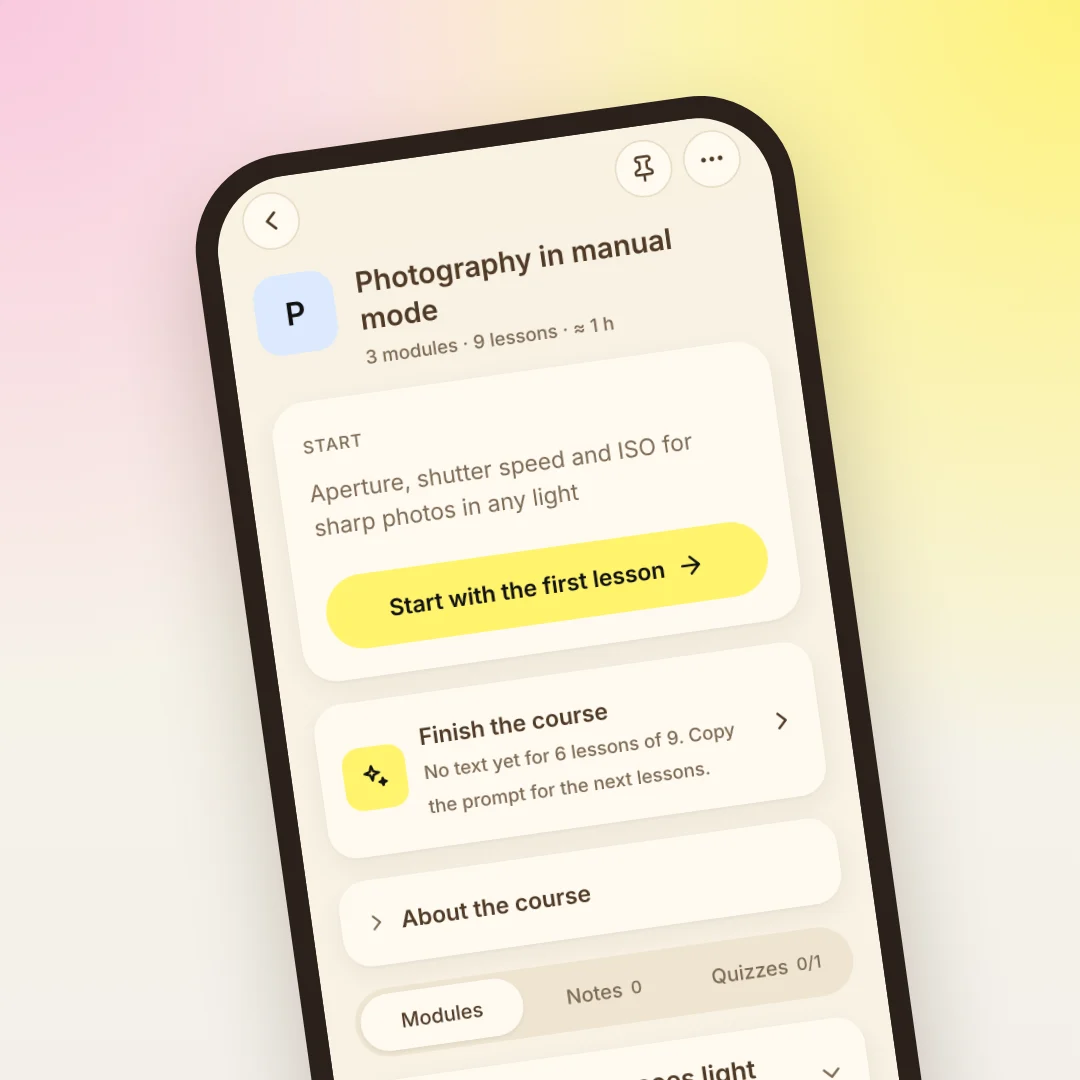
With the connection, ChatGPT works with your courses directly. It sees the list of your courses and the plan of each one: modules, lessons and which lessons are already written. It can create a new course, add modules and rewrite a module you aren't happy with. It keeps the ids of your lessons, so your progress and notes stay where they were.
You don't copy anything. You ask, and a minute later the lessons are in Academy.
How to connect Lororo Academy to ChatGPT
You need two windows: Lororo Academy and ChatGPT in the browser.
- In Lororo Academy, open the menu under your photo at the top right and choose "Connect to AI". Press "Copy" next to "Server address".
- Open chatgpt.com. Go to Plugins, press Add, then "Add custom MCP server".
- Name it Lororo. Paste the address under Connection (Server URL), and choose OAuth under Authentication.
- Tick "I understand and want to continue" and press "Create as a plugin".
- ChatGPT opens a Lororo page. If it asks, sign in with the same Google account you use in Lororo. Press "Allow".
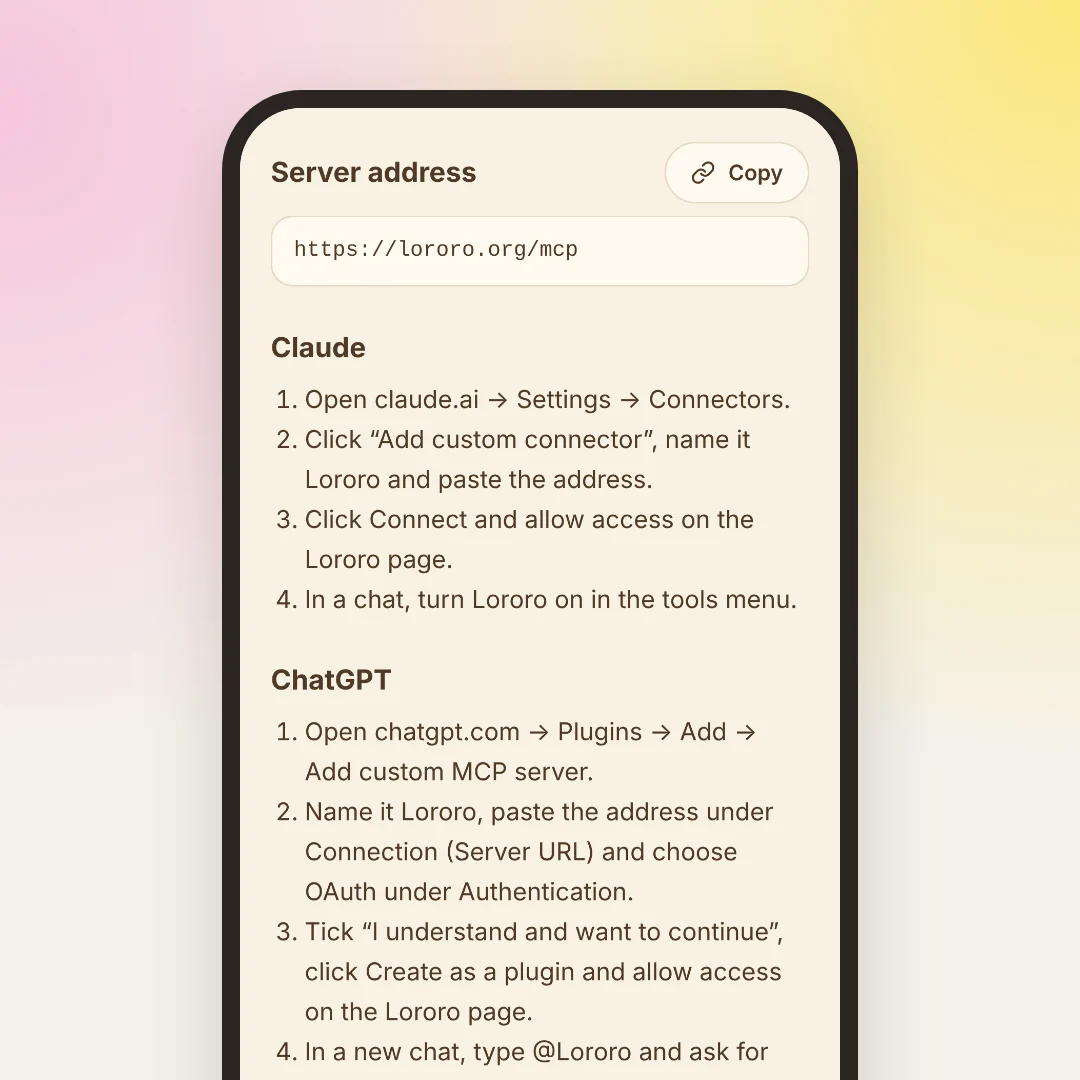
Now open a new chat, type @Lororo and ask for what you need. The connection stays, so you don't repeat these steps.
If your ChatGPT doesn't offer "Add custom MCP server", or you're on someone else's computer, you can still use ChatGPT with Academy by copy and paste. The steps are in How to study with ChatGPT and keep it: turn your chat into a course in Lororo Academy.
First request: a course from your old chat
Go to the chat where you've asked about one topic the longest. Type @Lororo and write:
ChatGPT first looks at your courses. Then it creates the course with the whole plan and the text of the first module. Each lesson has sources and a short quiz. At the end, ChatGPT gives you a link to the course.
Sometimes a chat breaks in the middle, and ChatGPT tries again. Lororo then doesn't create a second copy of the course. It tells ChatGPT that the course already exists, and ChatGPT continues it.
Write the rest of the course in the chat
When you've read the first module, come back to the same chat, or open any new one:
ChatGPT checks which lessons have no text yet and writes them. The same works for changes. A few requests that work well:
- "Module 3 of my finance course is too much theory. Rewrite it with examples in real numbers."
- "Add a module about paying off a loan at the end of my finance course."
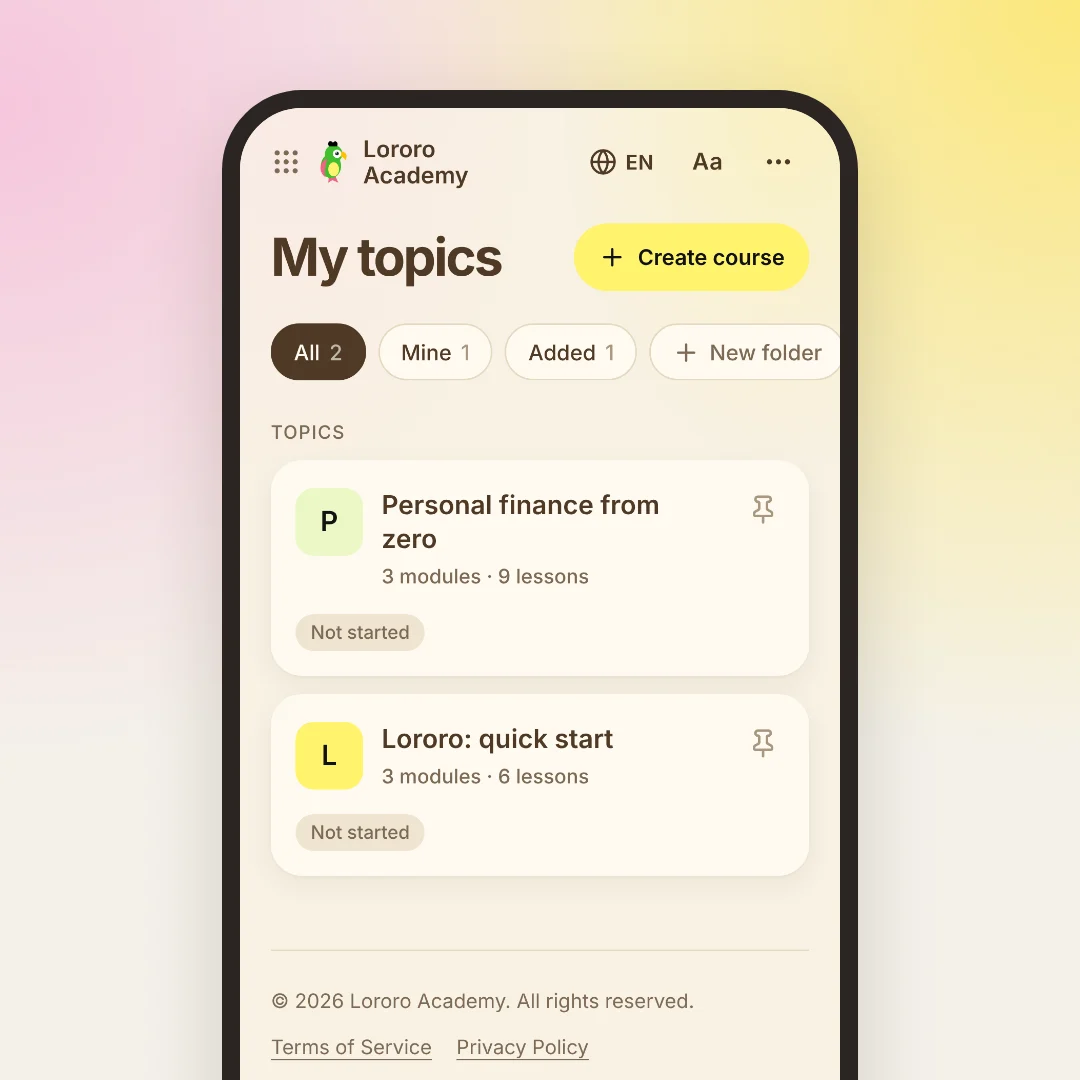
- "Show my Lororo courses."
- "Sort my Lororo courses into folders: work, languages, hobbies."
A rewritten module replaces the old one. If ChatGPT drops a lesson while rewriting, Lororo warns it that the lesson's progress and notes would be lost, and ChatGPT can bring the lesson back.
Sometimes your chat is about a language, and you need the words more than a course. The same connection serves Lororo Words: ask ChatGPT to add the words from the chat as cards. Read more in ChatGPT plugin for flashcards: connect Lororo Words, and ChatGPT adds the cards itself.
What ChatGPT can see, and how to disconnect
When you press "Allow", ChatGPT can see your courses and lessons, create courses and add or rewrite modules. It can also see your Lororo Words dictionary, add words as cards and delete words when you ask. It can't read your notes and can't delete courses.
To turn the connection off, open "Connect to AI" in Lororo Academy again. Under "Connected AI" you see ChatGPT and when it was last active. Press "Disconnect" next to it. Removing the plugin in ChatGPT alone doesn't revoke the access, so use "Disconnect" in Lororo.
Connect it today
Connecting takes a couple of minutes, and the first course shows the result right away. Start with the chat where you've asked the most questions. If you're new to Academy, first read Your first 5 minutes in Lororo Academy: create a course with AI.
Lororo opens in waves. Press "Join the waitlist", and I will write when it's your turn.
 Lororo Words