Lororo
 Lororo Words
Lororo is now in the Claude connector directory. You connect Claude to Lororo Words in a minute, without copying any addresses. After that, you write "add the words from this chat to Lororo", and Claude puts complete cards into your dictionary itself.
Why connect Claude to your flashcards
On Thursday you have a Spanish lesson with your tutor. You talk about renting a flat in Buenos Aires, and you write down fifteen new words in your notebook. On Friday you do the homework with Claude next to you. You ask it to translate a few words and to explain why "alquilar" doesn't fit one sentence.
Now the words from this week live in two places: a page in your notebook and a chat with Claude. A week later your tutor asks "how do you say deposit?", and you remember there was such a word. You don't remember the word itself.
To study these words, you used to copy a prompt, wait for the JSON, copy it back and paste it into Lororo Words. With the connector, you skip that chore. You ask Claude in plain words, and a minute later the cards are in Lororo Words, ready to practise before the next lesson.
How to add Lororo to Claude
You can do it on claude.ai or in the Claude desktop app. Once it's connected, it works on your phone too.
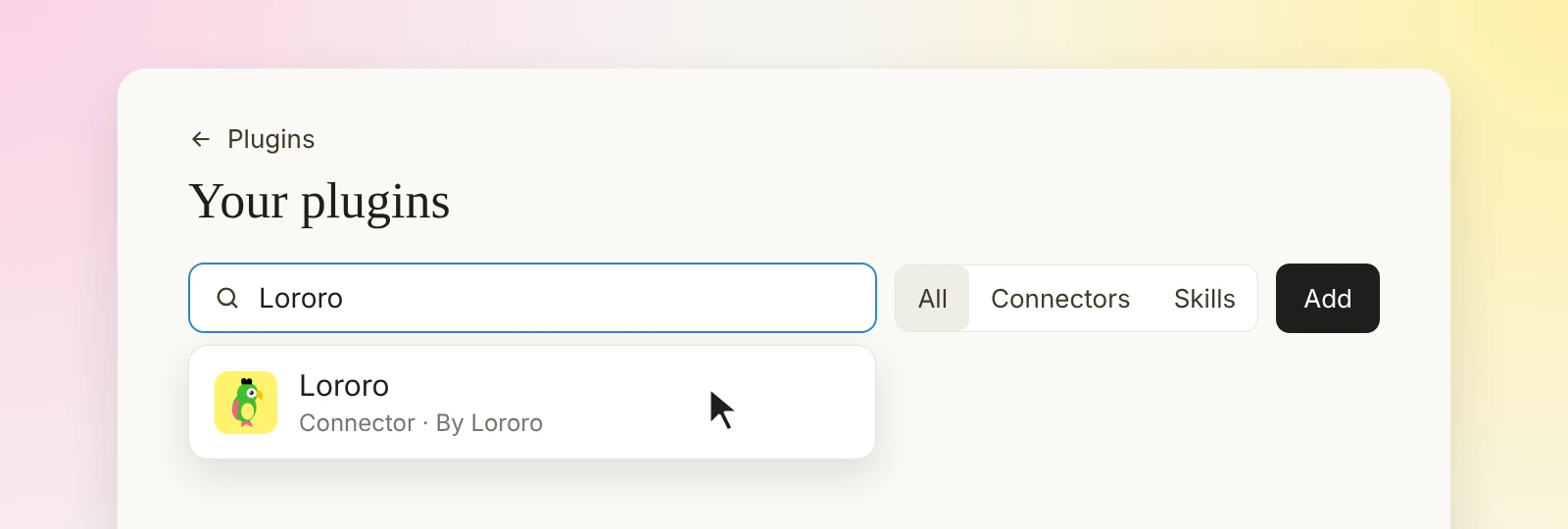
- In Claude, open "Plugins" in the sidebar.
- Type Lororo in the search and choose Lororo, "Connector · By Lororo".
- Connect it. A Lororo page opens: sign in with your Google account and press "Allow".
That's it. You don't need an invitation: when you connect Lororo through Claude, your Lororo account opens right away.
In a chat, Claude can use Lororo when you ask for it. If it doesn't, press "+" in the message box, open "Connectors" and check that Lororo is turned on.
First request: the words from this week's lesson
Open the chat where you did your homework. Take a photo of the page with the words from the lesson and attach it. Then write:
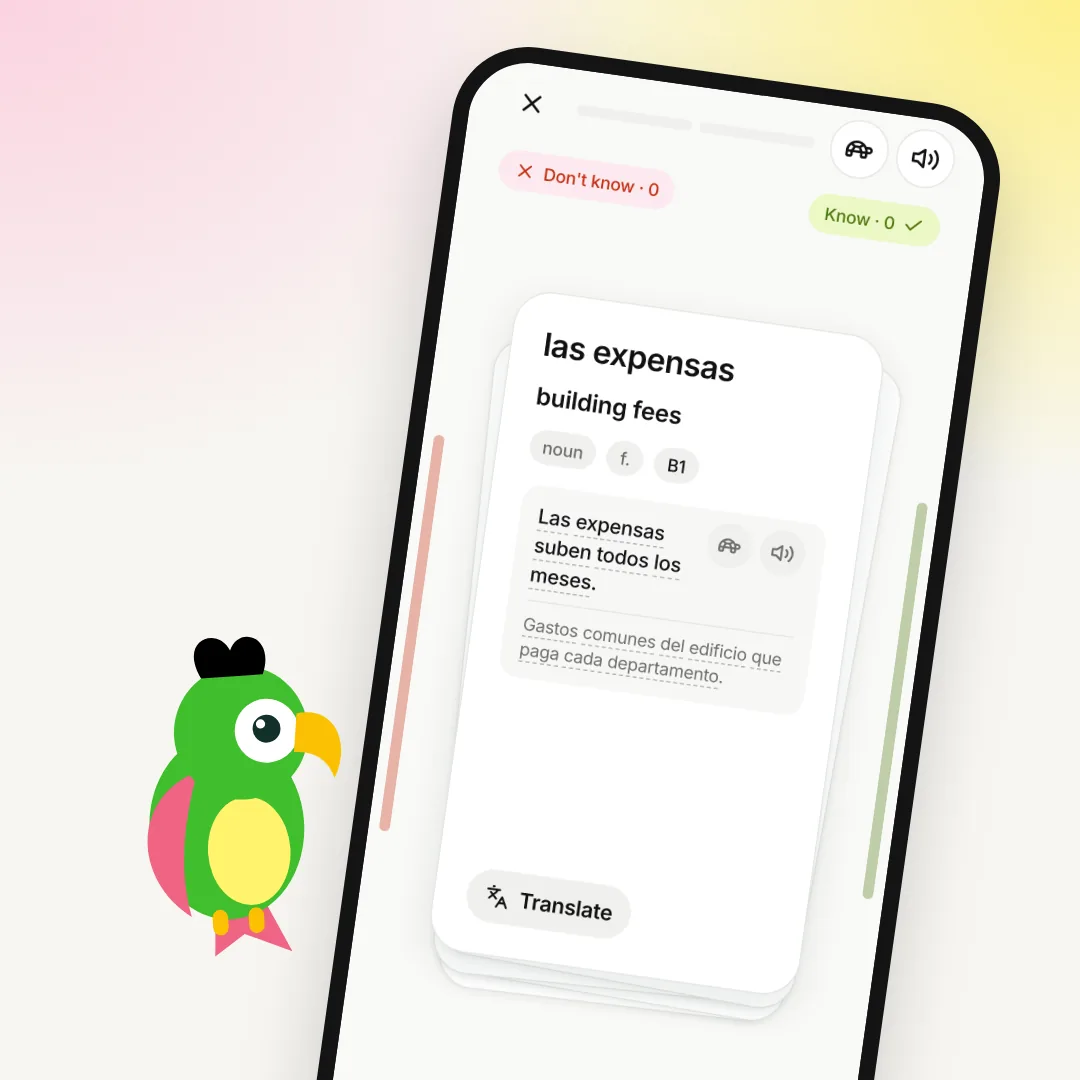
Claude checks which language you learn in Lororo Words. Then it adds full cards: translation, a definition, examples with translations, part of speech and level. It writes all of that itself, so you don't fill in anything. If you don't name a deck, Claude asks which one the words should go to.
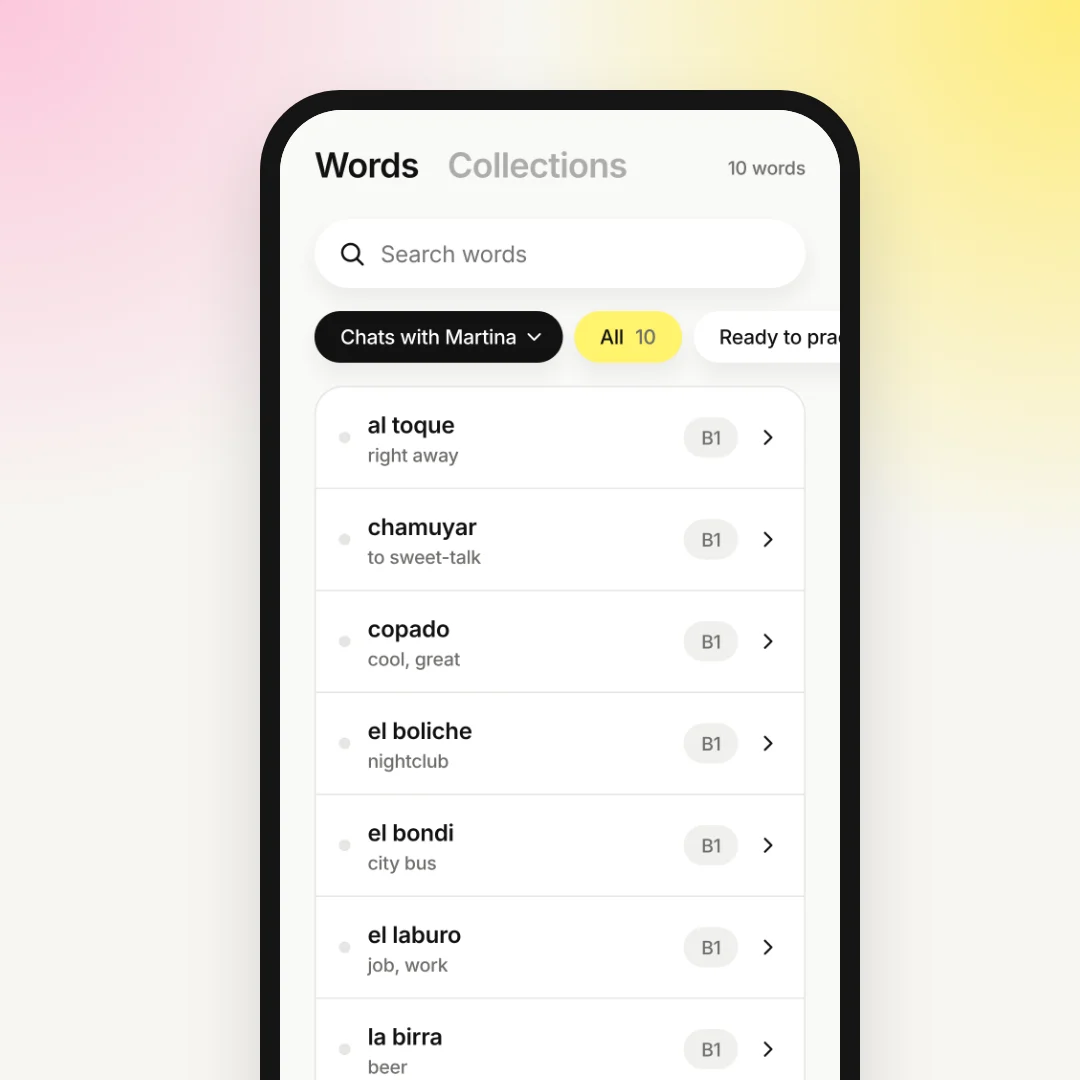
If a word is already in your dictionary, Claude updates its card, and your review progress stays. In Lororo Words, the new cards come back again and again in games and on the Path until you remember them.
What else to ask Claude
The same connection helps with the cards you already have. A few requests that work well:
- "Add the word 'garantía' to Lororo."
- "Fill in the missing definitions in my Lororo Words cards."
- "I'm B2. Add five phrases that sound more natural than 'very good'."
- "Find duplicate words in my Lororo dictionary and merge them."
Sometimes a chat is about a whole topic, and a deck of words isn't enough. The same connection serves Lororo Academy. Read how in Lororo Academy is now in Claude: connect it, and Claude writes your course.
What Claude can see, and how to disconnect
When you press "Allow", Claude can see your Lororo Words dictionary, add words as cards and delete words when you ask. It can also see your courses in Lororo Academy, create courses and add or rewrite modules. It can't read your notes and can't delete courses.
To turn the connection off, open "Profile" in Lororo Words and choose "Connect to AI". Under "Connected AI" you see Claude. Press "Disconnect" next to it. Removing Lororo in Claude alone doesn't revoke the access, so use "Disconnect" in Lororo.
If you use ChatGPT instead, the steps are in ChatGPT plugin for flashcards: connect Lororo Words, and ChatGPT adds the cards itself.
Try it after your next lesson
Connecting takes about a minute. After your next lesson, send Claude your notes and the homework chat, and practise the cards before the lesson after. More ideas for studying with a tutor are in Lororo with a tutor: how to keep the words from every lesson. If you're new to Lororo Words, read Your first 5 minutes in Lororo Words: language, starter pack, first game first.
 Lororo Academy